

Managing stock efficiently is a crucial part of keeping any business organized and profitable. This template offers a smart, easy-to-use system that helps you monitor products, suppliers, and stock movements all in one place.
Before we explore the details, here’s a quick overview of what you can expect to learn in this guide:
- Understand the core sections that make this Excel template easy to navigate and manage.
- Learn how to integrate and customize the sheet to fit your business needs.
- Discover the benefits and use cases of barcode-based tracking.
- Get practical tips to make your inventory process faster and more accurate.
Download your free inventory management template now and start managing your stock smarter, faster, and more efficiently.
<iframe src=”https://docs.google.com/spreadsheets/d/e/2PACX-1vSlCOyfjYlM31v1HOl2YpMZr5WnEBtgyuRoOXoyNPArGTaaR-t-2-7AudJBB81ySA/pubhtml?widget=true&headers=false”></iframe>
Key Sections of the Template: Building Blocks for Organized Lead Tracking
This section breaks down the core components that make the template functional and efficient. Each part is thoughtfully designed to help businesses organize data, improve visibility, and make smarter inventory decisions.
From tracking products to managing suppliers, every category plays a role in maintaining a smooth operational flow within your barcode inventory system Excel.
Product Information
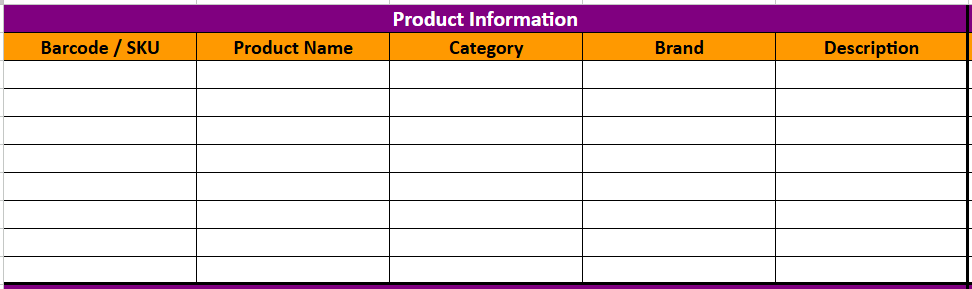
A well-structured inventory starts with detailed product information. This section captures essential identifiers and descriptions to help you quickly locate and classify each item.
- Barcode / SKU: Unique codes for seamless scanning and faster input.
- Product Name & Category: Keep naming consistent for easy sorting.
- Brand & Description: Clarify each item’s specifications and key details.
Having a centralized product list ensures your team can find items instantly, reducing errors and saving time during audits or sales.
Stock Details
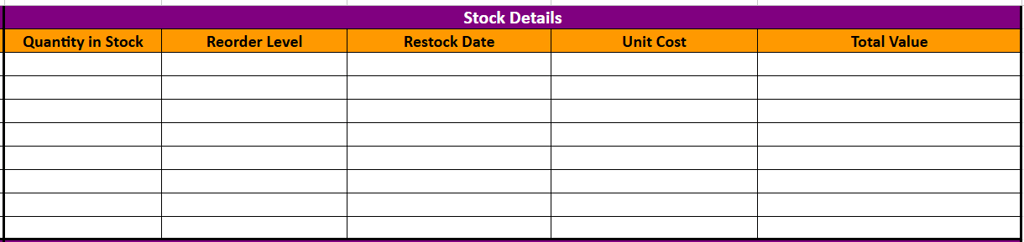
This section focuses on maintaining accurate inventory counts and tracking restock schedules. It allows users to monitor availability while keeping tabs on cost and overall stock value.
You can easily spot low-stock items, set reorder thresholds, and calculate stock worth at a glance. This helps ensure you never run out of essential products while avoiding over-purchasing.
- Quantity in Stock and Reorder Level make restocking decisions faster.
- Restock Date ensures proactive inventory control.
- Total Value helps evaluate overall asset worth.
Supplier Information

Every business depends on reliable suppliers, and this section simplifies vendor tracking. It organizes supplier names, contact details, and locations, making it easier to manage relationships and communication.
By consolidating supplier data in one area, businesses can reorder faster and build stronger long-term partnerships.
- Supplier Name & Contact: Keep information accessible and accurate.
- Email & Phone: Simplify communication when reordering stock.
- Location: Identify logistics and delivery patterns easily.
Sales & Movement

Understanding how products move in and out of your inventory is vital for profitability. This section monitors product performance, helping identify high-demand and slow-moving items.
It’s also useful for forecasting sales trends and planning promotions around top performers.
- Last Sold Date provides insights into recent activity.
- Units Sold (Month) shows product popularity over time.
- Revenue Generated gives an overview of the financial impact.
By analyzing these data points, you gain clear insights into your sales flow and can make better restocking decisions.
Tracking & Notes

This section brings together all remaining details that ensure accountability and traceability. It’s where you document where items are stored, their condition, and who made the last updates.
Keeping these notes consistent ensures data transparency across the team and simplifies audits or quality checks.
- Storage Location: Know exactly where every item is stored.
- Condition: Track product status and ensure only quality items are shipped.
- Notes & Last Updated By: Keep record of key updates for accountability.
This final section ties everything together, ensuring the system remains clean, updated, and ready for scaling.
Maximizing Efficiency with Your New System
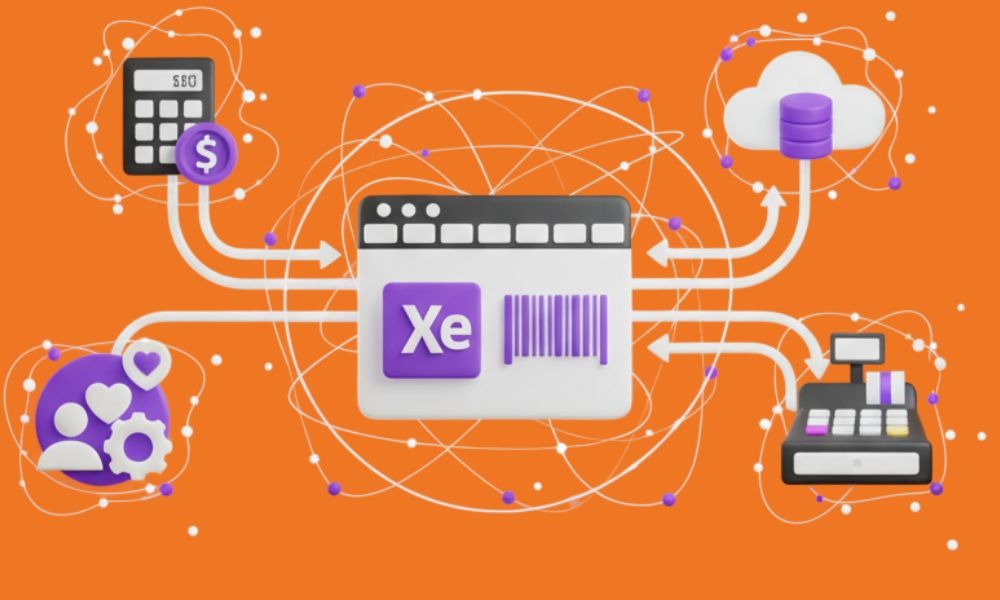
Now that you have your barcode inventory system up and running, let’s explore some additional tips to maximize efficiency and accuracy.
Tips for Faster Inventory Management
Efficient inventory management saves time and reduces errors. Here are a few simple tips to help you stay organized and keep operations running smoothly.
- Organize your inventory logically and systematically. Group similar items together and assign specific locations to each item category.
- Train your team on how to use the barcode scanner and properly handle inventory items. This will minimize the risk of damage or misplaced items.
- Regularly review your inventory data to identify slow-moving or obsolete items. This will help optimize your inventory levels and prevent unnecessary clutter.
Following these tips will help streamline your inventory management processes and save valuable time.
Ensuring Accuracy in Your System
While barcode inventory systems are highly accurate, it’s important to regularly audit your system to ensure its integrity. Here are a few measures you can take:
- Perform periodic spot checks of inventory items to verify that the system records match the actual physical count.
- Regularly review your system for any duplicate barcodes or incorrect data entries. This will help maintain data accuracy and prevent any potential issues.
- Implement a system of checks and balances, such as team members verifying the accuracy of each other’s work or implementing periodic reviews by a designated supervisor.
By regularly auditing your barcode inventory system, you can be confident in the accuracy and reliability of your inventory records.
Customizing a Barcode Inventory Management Template Excel for Your Business
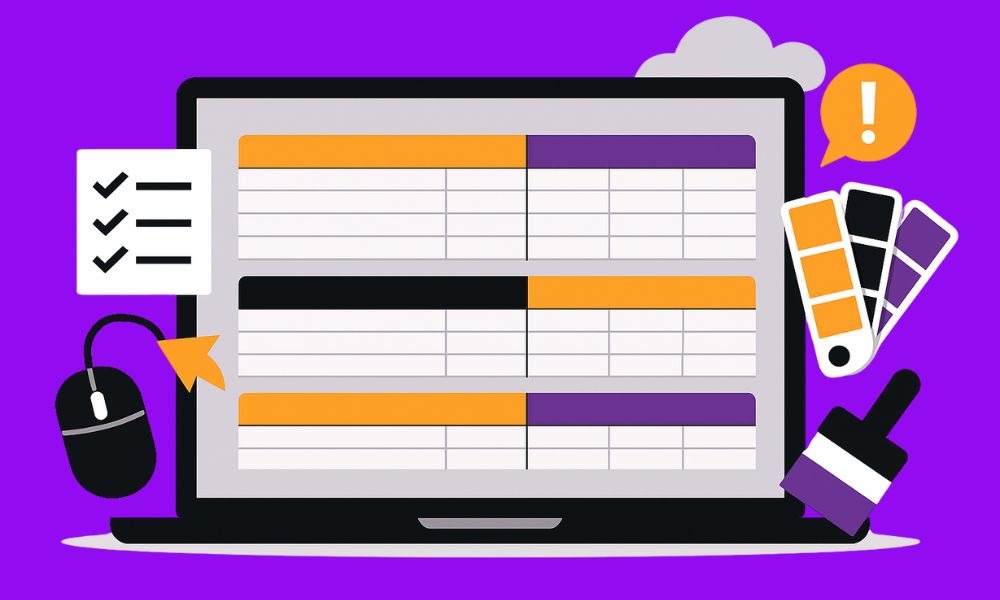
Every business has unique needs, and your inventory system should reflect that. Customizing the template allows you to adapt it to your workflow, making these changes ensures your team works with a system that fits rather than having to adjust to a rigid format.
By refining key parts of the sheet, you can make tracking faster, reporting more accurate, and collaboration easier. Here’s how to personalize it for your operations:
Step 1: Adjust Columns to Fit Your Workflow
Start by adding or removing columns that align with your inventory structure. A marketing agency might include campaign materials, while a retailer might need product variants. Keeping only what’s necessary helps maintain a clean and focused template.
- Remove columns you don’t use.
- Add new fields like SKU type, warehouse zone, or category tags.
- Rearrange columns to suit your daily data input flow.
Step 2: Apply Conditional Formatting
Conditional formatting helps visualize inventory health at a glance. You can highlight low stock levels, expired products, or high-performing items automatically. This improves data clarity and minimizes oversight.
To do this, set rules that change cell colors based on quantity or date values. It turns raw data into quick visual cues that guide better decisions.
Step 3: Automate Calculations and Alerts
Integrate formulas that update the total stock value or reorder dates automatically. This step removes repetitive manual tasks and provides real-time insights into your inventory.
You can also add simple Excel alerts. For instance, turning cells red when a product reaches its reorder threshold. These automations make your workflow smoother and more proactive.
Step 4: Customize Colors and Branding
Aligning your sheet with your brand colors doesn’t just look professional; it helps your team feel more connected to the system they use daily. Choose shades that enhance readability and recognition, like brand-accented headers or color-coded sections for product categories.
Step 5: Protect and Share Your Template
After customization, lock key formulas or columns to prevent accidental edits. This keeps the integrity of your calculations intact and ensures data consistency when shared across departments.
You can password-protect sheets or create editable copies for team members who handle specific areas like stock control or supplier management.
Benefits of Using a Barcode-Based Inventory Tracker
A barcode-based system simplifies how you manage and monitor your inventory. It improves efficiency, minimizes errors, and keeps your operations running smoothly with real-time accuracy and clarity.
- Faster tracking with instant barcode scans
- Reduced human error in data entry
- Accurate reporting for better stock decisions
- Time-saving automation of repetitive tasks
- Scalable system that grows with your business
With a well-structured template, you can easily turn these benefits into everyday results, making your inventory process smarter, faster, and more reliable.
Start Organizing Smarter Today
If you’re ready to take control of your inventory and eliminate the hassle of manual tracking, learning how to create a barcode inventory system in Excel is a great place to start. With the barcode inventory system free, you can streamline stock management without relying on complex software or costly tools.
It’s designed to help you save time, reduce errors, and keep every product, supplier, and sale organized in one professional Excel sheet. Start simplifying your workflow today; download the template and feel free to customize it to fit your needs.
Templates track the work. We do the work.
Past a few hundred orders a month, tracking fulfillment by hand becomes the bottleneck. Fulfyld picks, packs, and ships every order under a formal SLA with automatic credits, one flat all-inclusive per-order price, and a dedicated account manager.
Get a real quote