

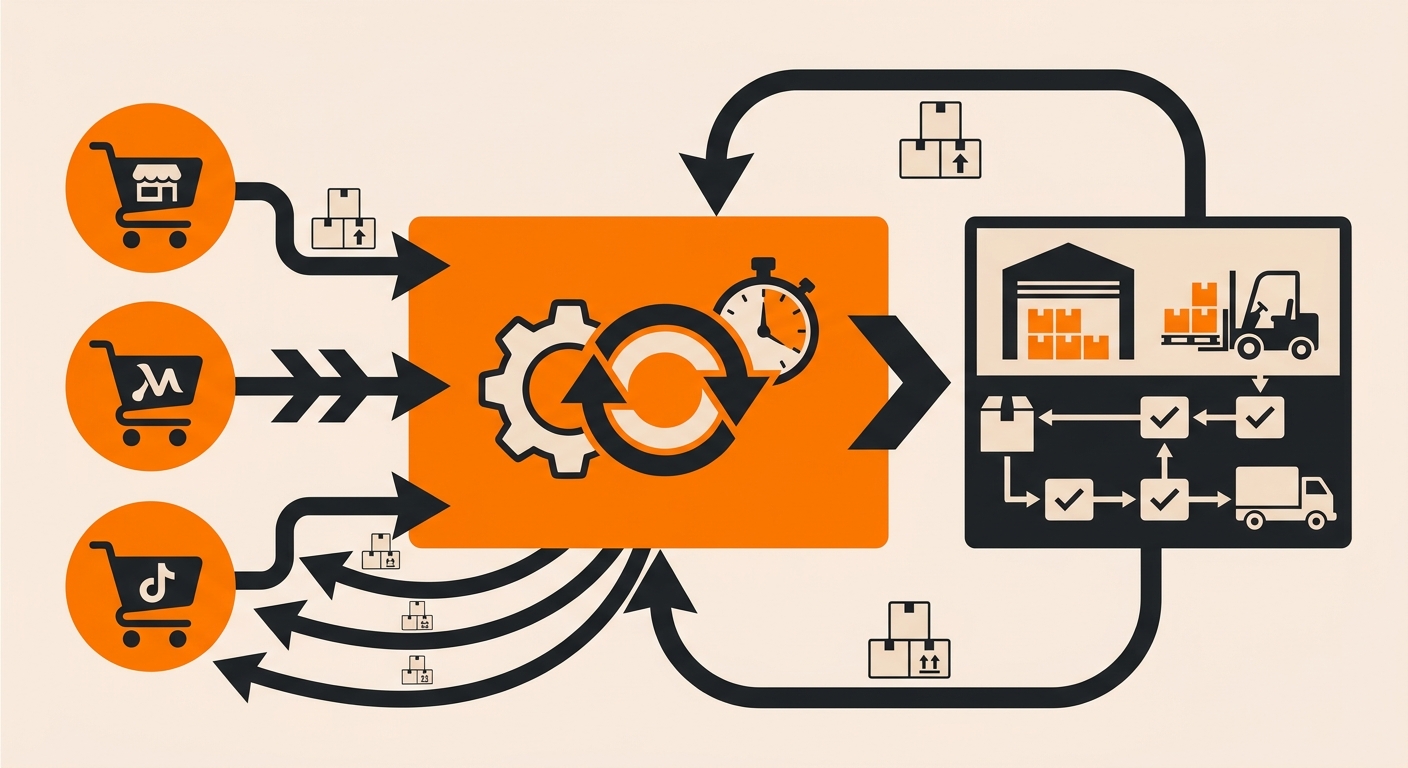
Quick answer: Fulfyld manages a single inventory pool in Shipedge shared across all your connected sales channels. Whether an order comes in from Shopify, Walmart Marketplace, WooCommerce, Etsy, or any other integrated platform, it draws from the same physical stock in the warehouse.
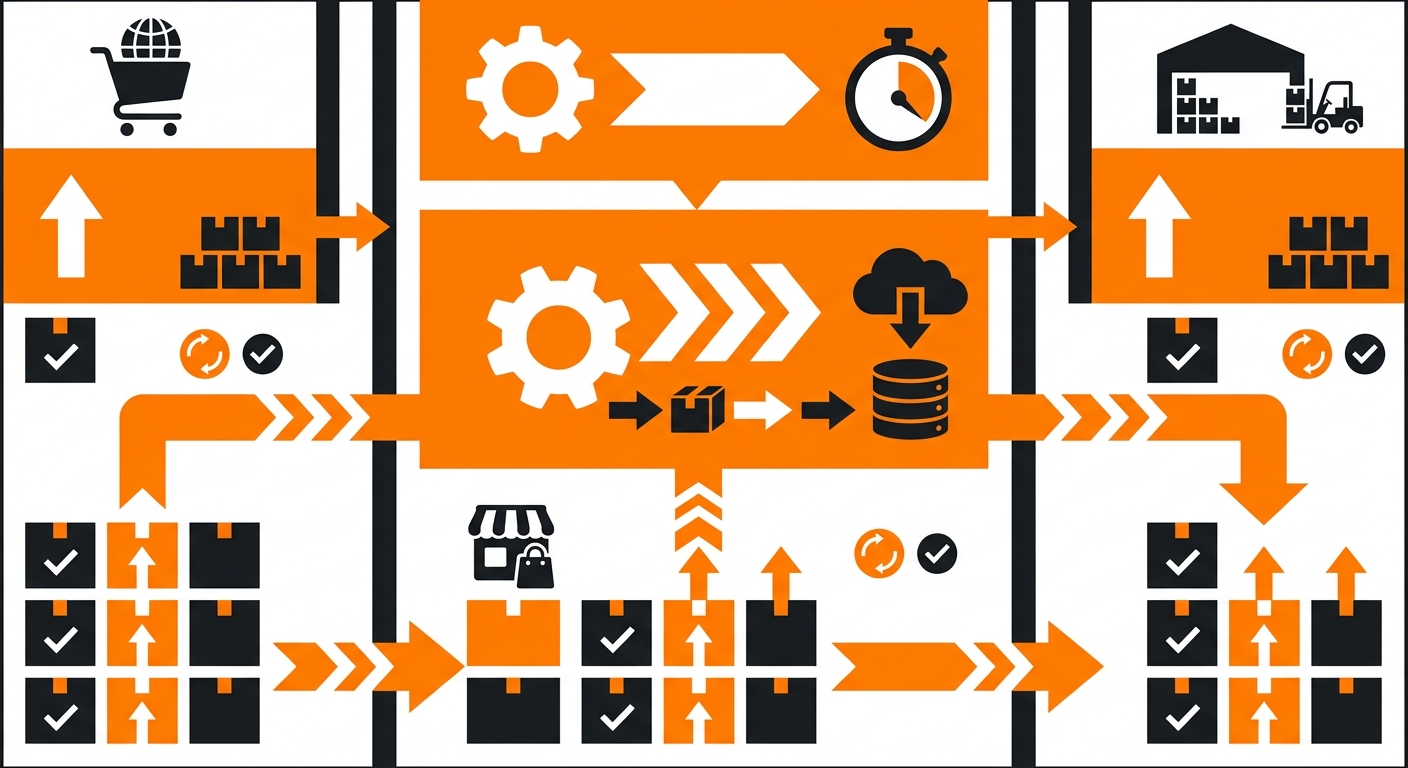
What Triggers an Inventory Update
Shipedge updates your available inventory count whenever stock levels change for any reason:
-
A unit is picked and packed for an order
-
A return is received, inspected, and restocked
-
A replenishment is received and put away after delivery
-
A cycle count results in a quantity adjustment
-
A manual inventory adjustment is made by your account manager
Each of these events updates the on-hand count in Shipedge, which then pushes the new figure to all connected storefronts.
How Inventory Gets Synced: Step-by-Step
These are all the steps of how Fulfyld syncs inventory across channels:
Step 1: A Stock-Changing Event Occurs in the Warehouse
Something physical happens that changes how many units of a SKU are available; an order is picked and packed, a return is restocked, a replenishment is received and put away, or a cycle count results in a quantity adjustment. Any of these events triggers a stock-level change in Shipedge.
Step 2: Shipedge Updates the On-Hand Count
The moment the warehouse action is confirmed in Shipedge, the pick is scanned, the return is processed, and the replenishment is received, Shipedge recalculates the available inventory count for that SKU. This is the single source of truth for your stock levels across all channels.
Step 3: Shipedge Pushes the Updated Count to All Connected Channels
Shipedge sends the new inventory figure to every sales channel connected to your Fulfyld account simultaneously via the API integration. Shopify, Walmart Marketplace, WooCommerce, Etsy, and any other connected platform all receive the updated quantity from the same event at the same time.
Step 4: Your Storefront Updates the Available Stock on Your Listings
Each connected platform processes the incoming inventory update and reflects the new count on your product listings. Customers browsing your store see an accurate available quantity, and if a SKU has dropped to zero it shows as out of stock across all channels simultaneously, preventing oversells.
Step 5: The Cycle Repeats on Every Stock-Changing Event
Every subsequent pick, return, replenishment, or adjustment triggers the same sequence. There’s no manual step required on your end, as long as the integration is active and transmitting, the sync runs continuously in the background across every order and every channel.
How to Verify Your Inventory Sync Is Working
Pull your inventory report from the Reports tab in Shipedge and compare your on-hand quantities against what each connected storefront is showing for the same SKUs. If the numbers match, the sync is working.
If specific SKUs show consistent gaps, particularly on one channel but not others, that points to a channel-level integration issue rather than a Shipedge data problem. Share the specific SKU and the channel with your account manager so they can investigate the configuration.
Still Have Questions?
For help with inventory sync discrepancies or adding a new channel to your Fulfyld account, contact your dedicated account manager directly, or reach the Fulfyld team at hey@fulfyld.com or (256) 716-8241.
Frequently Asked Questions
Does Fulfyld sync inventory to all my channels simultaneously, or one at a time?
Shipedge pushes inventory updates to all connected channels when a stock change occurs, not sequentially. All channels receive the updated count from the same event.
Can I reserve inventory for one channel and not make it available on others?
Not natively through Shipedge’s standard inventory sync. By default, all connected channels draw from the same shared inventory pool. If you need to allocate stock exclusively to a specific channel, discuss this with your account manager.
What happens to inventory sync if I disconnect a sales channel?
If you disconnect a sales channel from Fulfyld, inventory updates will stop pushing to that channel. Stock levels on the disconnected platform will go stale and will no longer reflect what’s actually in the warehouse. Orders placed on the disconnected channel will also stop routing to Fulfyld.
If you’re removing a channel intentionally, confirm with your account manager that the integration has been cleanly disconnected and that any open orders on that channel are resolved before the cutoff.
Will inventory sync correctly if I sell the same SKU on multiple storefronts?
Yes, this is one of the primary advantages of Fulfyld’s single inventory pool model. The same SKU selling simultaneously on Shopify and Walmart Marketplace draws from the same physical stock, and every sale on either platform immediately reduces the available count pushed to both.
How do I add a new sales channel to my existing Fulfyld account?
Contact your account manager to initiate the integration setup for the new channel. The process follows the same connection and test order flow used during your original onboarding. Fulfyld connects to the new platform via API, you place a test order to confirm the integration is transmitting correctly, and once the test passes, live orders from that channel begin routing to Fulfyld, and inventory sync extends to cover it.