Brett McCleary is Director of Implementation at Fulfyld, where he leads client onboarding and the integrations that connect brands' stores, marketplaces, and systems to Fulfyld's fulfillment operation.
***Before you begin, ensure that all products in your WooCommerce Account have accurate shipping weights and dimensions so that we can ensure you are provided with an accurate quote***
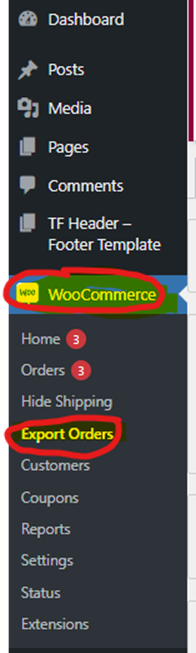
Log in to your WooCommerce account. On the left side menu, navigate to WooCommerce > Export Orders:
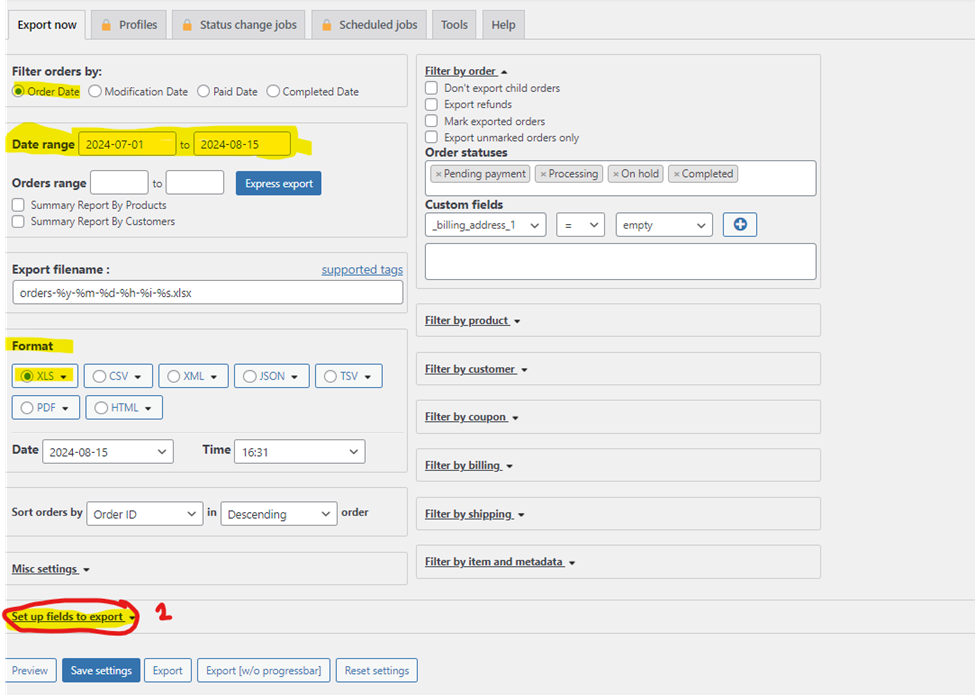
In the following screen, under the Export Now tab, select the following options:
Ensure the Date Range is set to the previous full month’s worth of order data. Then select Set up fields to export (Number 2, circled in red above).
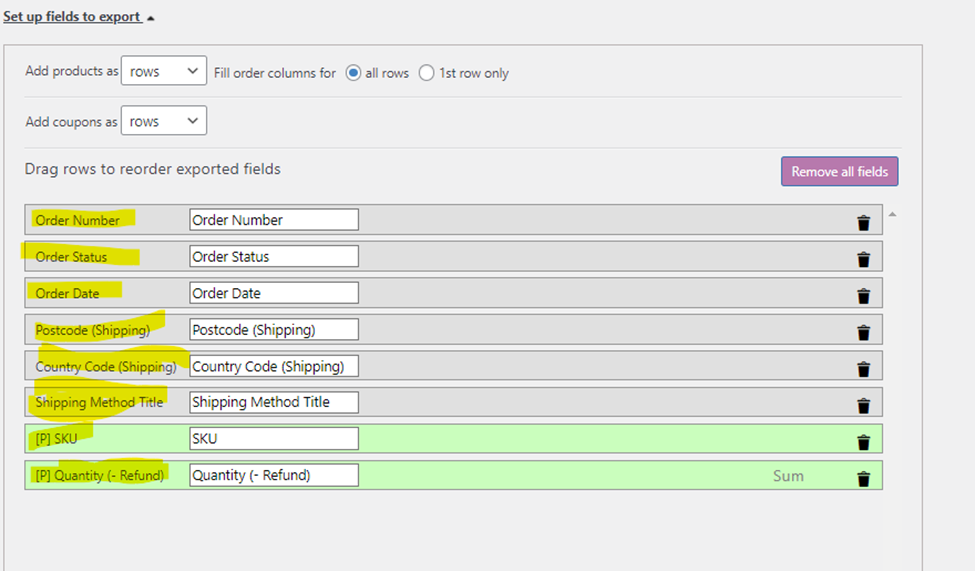
In the box that opens, remove all default fields, except for the following:
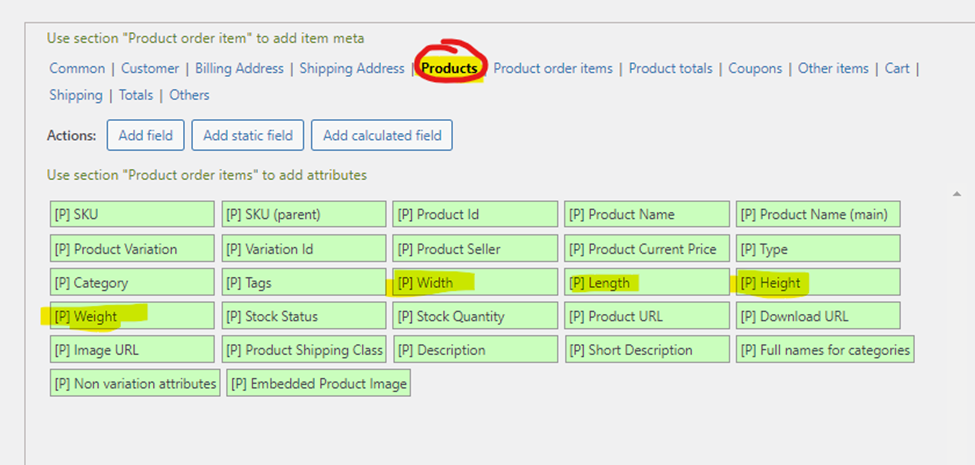
Next, we’ll need to add a few more fields. Select Products on the right side of the screen and drag the highlighted fields to the left:
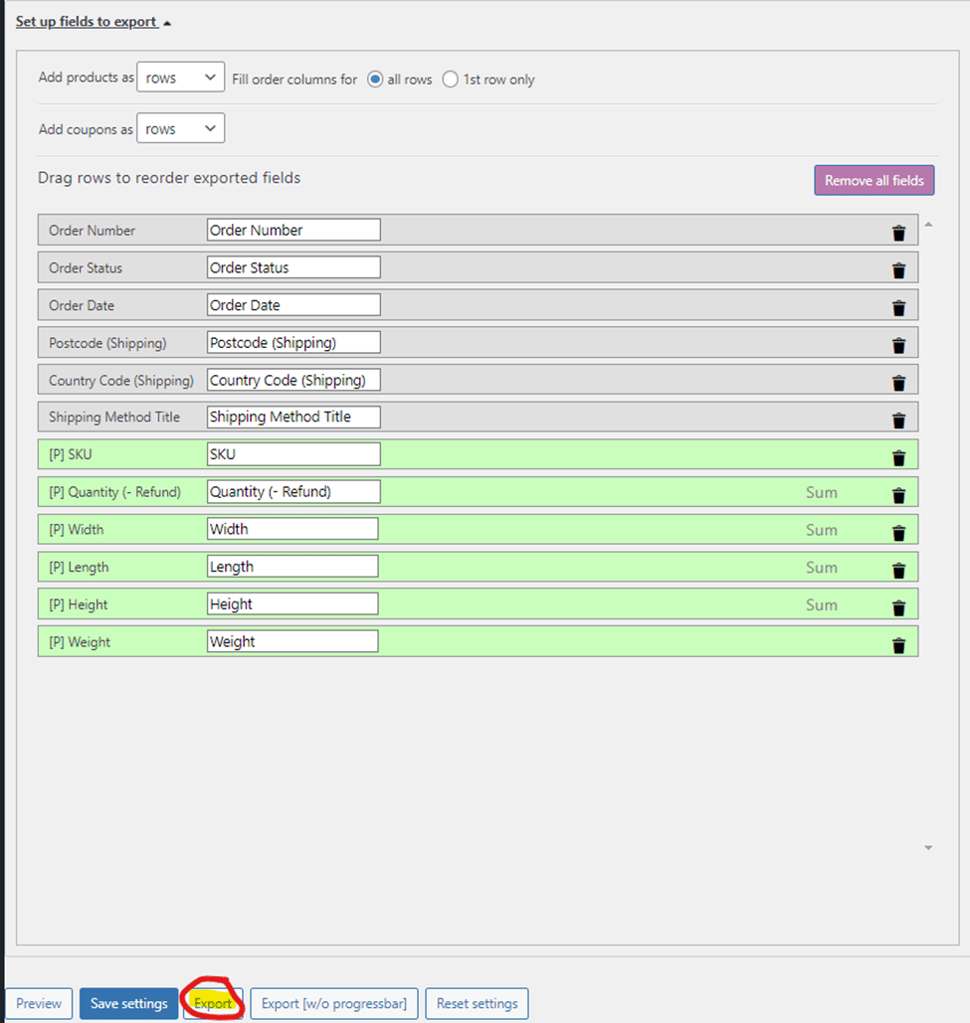
The final fields to export to the report should look like below:
Select the Export button (circled in red above) to export and download the report. You can use this file to upload in the Shipping Analysis form.
Frequently Asked Questions
Why do I need to include shipping weights and dimensions before exporting my WooCommerce orders?
Accurate shipping weights and dimensions ensure that Fulfyld can provide you with precise shipping cost quotes and rates for your orders. Without this information, the analysis and quotes generated from your export may be incomplete or inaccurate.
How far back should I go when exporting my WooCommerce order data for shipping analysis?
You should export the previous full month's worth of order data when setting your date range. This provides a representative sample for accurate shipping cost analysis and forecasting.
What fields should I keep when customizing my WooCommerce export for shipping analysis?
The article specifies removing all default fields except for a specific set (shown in the accompanying image), which typically includes essential order and shipping details needed for cost analysis. You should follow the exact fields indicated in the 'Set up fields to export' section.
Where do I find the export orders option in my WooCommerce account?
In your WooCommerce account, navigate to WooCommerce > Export Orders from the left side menu. From there, you'll access the Export Now tab where you can configure your export settings.
Brett McCleary is Director of Implementation at Fulfyld, where he leads client onboarding and the integrations that connect brands' stores, marketplaces, and systems to Fulfyld's fulfillment operation.
To provide the best experiences, we use technologies like cookies to store and/or access device information. Consenting to these technologies will allow us to process data such as browsing behavior or unique IDs on this site. Not consenting or withdrawing consent, may adversely affect certain features and functions.
Functional
Always active
The technical storage or access is strictly necessary for the legitimate purpose of enabling the use of a specific service explicitly requested by the subscriber or user, or for the sole purpose of carrying out the transmission of a communication over an electronic communications network.
Preferences
The technical storage or access is necessary for the legitimate purpose of storing preferences that are not requested by the subscriber or user.
Statistics
The technical storage or access that is used exclusively for statistical purposes.The technical storage or access that is used exclusively for anonymous statistical purposes. Without a subpoena, voluntary compliance on the part of your Internet Service Provider, or additional records from a third party, information stored or retrieved for this purpose alone cannot usually be used to identify you.
Marketing
The technical storage or access is required to create user profiles to send advertising, or to track the user on a website or across several websites for similar marketing purposes.
To provide the best experiences, we use technologies like cookies to store and/or access device information. Consenting to these technologies will allow us to process data such as browsing behavior or unique IDs on this site. Not consenting or withdrawing consent, may adversely affect certain features and functions.
Functional
Always active
The technical storage or access is strictly necessary for the legitimate purpose of enabling the use of a specific service explicitly requested by the subscriber or user, or for the sole purpose of carrying out the transmission of a communication over an electronic communications network.
Preferences
The technical storage or access is necessary for the legitimate purpose of storing preferences that are not requested by the subscriber or user.
Statistics
The technical storage or access that is used exclusively for statistical purposes.The technical storage or access that is used exclusively for anonymous statistical purposes. Without a subpoena, voluntary compliance on the part of your Internet Service Provider, or additional records from a third party, information stored or retrieved for this purpose alone cannot usually be used to identify you.
Marketing
The technical storage or access is required to create user profiles to send advertising, or to track the user on a website or across several websites for similar marketing purposes.