

Quick answer: Fulfyld doesn’t have a dedicated low-stock alert dashboard in Shipedge, but you can pull your current inventory levels from the Reports tab and filter for SKUs below your reorder threshold.
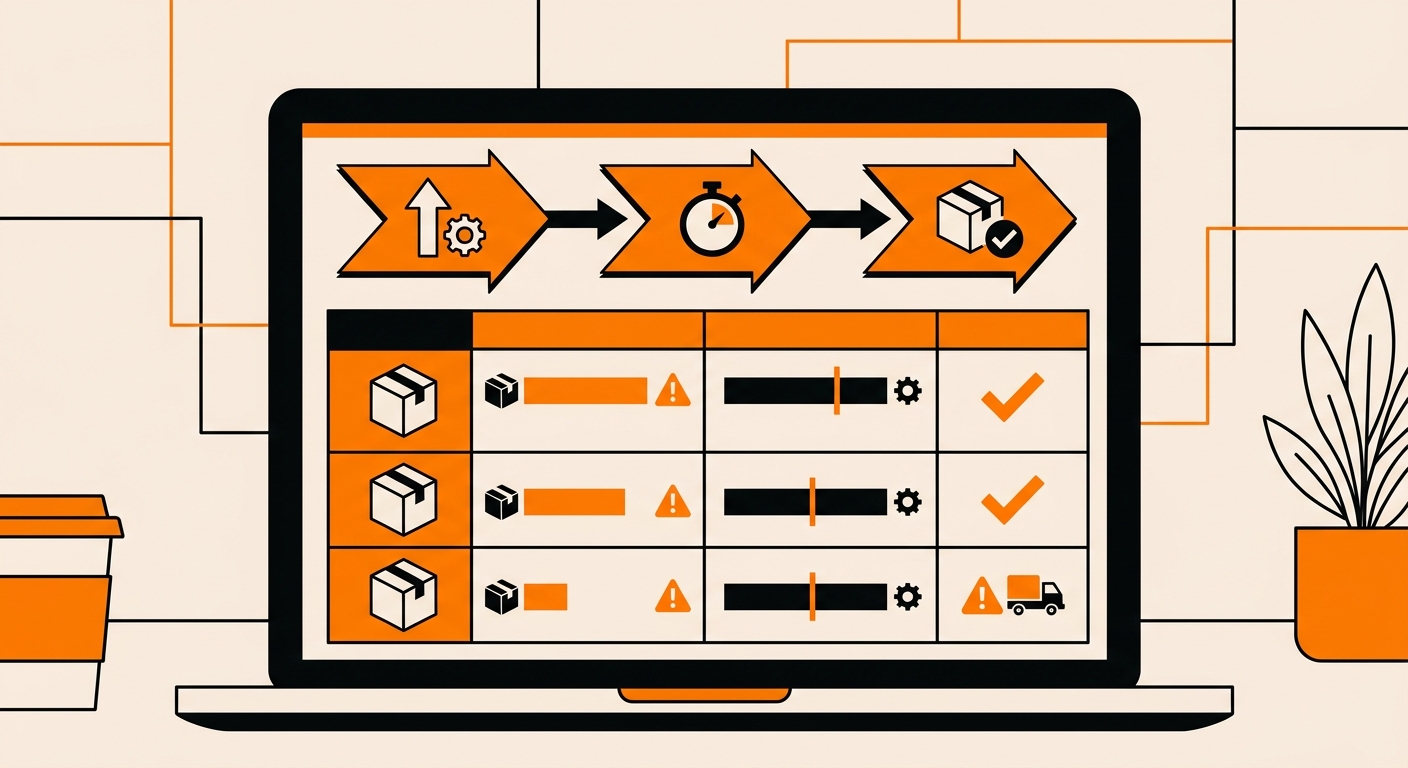
How to Pull a Low-Stock Report: Step-by-Step
Here’s how to pull a low-stock report using these steps:
Step 1: Log In and Go to the Reports Tab
Log in to your Fulfyld client portal and navigate to the Reports tab. Select the Inventory Report and set your date range to the current date; you want a snapshot of what’s on hand right now, not a historical range.
Run the report and export it as a CSV or Excel file.
Step 2: Open the Export and Filter by On-Hand Quantity
Open the exported file and sort or filter by the on-hand quantity column in ascending order. This surfaces your lowest-stock SKUs at the top of the list. Any SKU showing zero is already out of stock. Any SKU showing a quantity you’d normally reorder has hit its threshold.
Step 3: Compare On-Hand Against Your Reorder Thresholds
For each active SKU, compare the on-hand quantity against your reorder point, the quantity at which you need to submit a replenishment to avoid a stockout before the next delivery arrives. Your reorder point for each SKU is:
Step 4: Cross-Reference Against Open Replenishments
Before triggering reorders, check whether any of the flagged SKUs already have an open replenishment in Shipedge. Go to the Replenishment tab and review replenishments with a pending or in-transit status.
If a restock is already on its way, the on-hand quantity will be supplemented when it arrives.
Step 5: Initiate Replenishments for SKUs Below Threshold
For any SKU that’s below threshold and doesn’t have an open replenishment in transit, submit a replenishment in Shipedge before contacting your supplier.
Check It Weekly Before It Becomes Urgent
A low-stock situation that’s caught three weeks out is a routine reorder. The same situation, three days out, is a crisis. The inventory report in Shipedge has everything you need; the only variable is how consistently you pull it.
Build the weekly check into your operations rhythm and your reorder thresholds into a simple tracker, and stockouts become an exception rather than a pattern.
Still Have Questions?
For help setting up a recurring low-stock monitoring process or to request a custom inventory report, contact your dedicated account manager directly, or reach the Fulfyld team at hey@fulfyld.com or (256) 716-8241.
Frequently Asked Questions
Does Fulfyld send automatic low-stock alerts?
Not by default. Shipedge doesn’t have a built-in low-stock notification system that fires automatically when a SKU hits a threshold. Monitoring inventory levels is currently a manual process.
How do I calculate the right reorder point for each SKU?
The formula is: average daily order rate × (supplier lead time + transit days to Madison, AL). Add a buffer, typically 10–20%, for demand variance and supplier delays.
What if a SKU shows zero on hand, but I know I have inventory at Fulfyld?
A zero on-hand reading when you expect stock to be in the warehouse usually indicates one of three things: the inventory hasn’t been fully received and put away yet, a receiving discrepancy exists from a recent replenishment, or the SKU mapping has an issue.
Can I set different reorder thresholds for different SKUs in Shipedge?
If you want Fulfyld to flag SKUs below a specific threshold on your behalf, provide your account manager with a threshold list by SKU and ask them to include it in any custom inventory reports they run.
How quickly can I get a replenishment to Fulfyld if I’m already at low stock?
That depends entirely on your supplier’s lead time and the shipping method from the origin to Madison, AL. Fulfyld’s receiving process is fast. Once freight arrives and is received against your replenishment in Shipedge, inventory is typically available for picking within the same receiving session.