

Download and Review Excel Billing Detail Reports
You can download detailed Excel reports of your charges directly from your Fulfyld dashboard, which break down every SKU, shipment, and service fee applied to your account. These reports let you verify billing accuracy and reconcile charges against your actual fulfillment activity.
What It Is
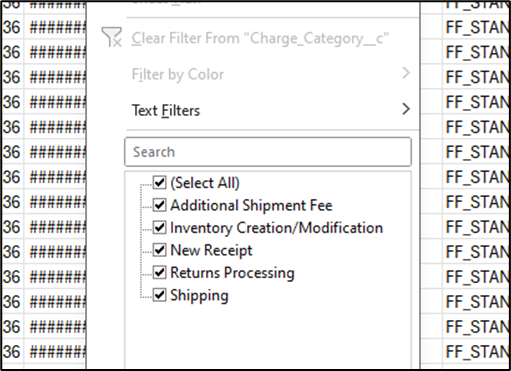
Your Excel billing detail report is a spreadsheet export containing line-item records of every charge Fulfyld assessed during your selected billing period. The report includes columns for date, order number, SKU identifier, service type (storage, pick-and-pack, returns processing, etc.), quantity, unit cost, and total amount. You can customize the date range—typically monthly periods—and download multiple reports to compare different timeframes.
The report format is standard .xlsx compatible with Excel, Google Sheets, and most accounting software. Each row represents a distinct billable event or ongoing charge. Storage fees appear as daily rates aggregated by SKU. Per-unit fulfillment fees (like picking or packing) show individual transaction counts. Additional services—such as kitting, labeling, or quality inspections—appear as separate line items with their associated costs.
Why It Matters
Billing accuracy is critical to your 3PL relationship. By reviewing these reports regularly, you catch errors before they compound across multiple months. You’ll identify if you’re being charged for inventory you’ve already removed, if overage fees are applying unexpectedly, or if service rates don’t match your contract terms.
These reports also serve compliance and accounting purposes. Your finance team needs itemized records to reconcile Fulfyld charges against your internal cost allocations, especially if you’re passing fulfillment costs to end customers. If you dispute a charge later, you’ll have documentation showing exactly what triggered it and when. The reports also help you forecast next month’s costs and adjust inventory levels if storage charges are trending higher than expected.
For businesses scaling quickly, billing detail reports reveal which SKUs or fulfillment activities are driving the highest costs. You might discover that slow-moving inventory is consuming 35% of your storage budget, prompting you to negotiate SKU limits or adjust your stocking strategy.
How to Download and Review Reports
Log into your Fulfyld dashboard and navigate to the Billing section. Select “Download Report” or “Billing Details.” You’ll see a date range selector; choose your desired start and end dates (reports are typically available for the previous 24 months). Click “Generate” or “Export,” and your browser will download a .xlsx file within 30 seconds to 2 minutes depending on account activity volume.
Once downloaded, open the file in Excel or your preferred spreadsheet tool. Sort by service type to see all storage charges grouped together, then all fulfillment fees. Check the “Total Amount” column against your invoice; they should match exactly. If you’ve received a credit or adjustment during the period, it will appear as a negative line item with a reason code.
Pay special attention to the “Unit Cost” and “Quantity” columns. Storage charges should reflect your agreed-upon rate per cubic foot per day. Fulfillment fees should match your contract pricing (for example, $0.50 per pick, $0.75 per pack). If rates differ from your agreement, flag those rows for investigation.
Cross-reference SKUs against your inventory records. If a SKU shows storage charges but you shipped out all units, that’s a sign the inventory wasn’t marked as removed in the system—contact Fulfyld immediately to correct it.
Common Issues and Troubleshooting
Report shows charges for SKUs I removed weeks ago. This usually means the inventory deactivation didn’t process or there’s a date lag in the system. Reports typically reflect activity as of 11:59 p.m. the previous calendar day. If a SKU was deactivated on the 15th, you may see charges through the 15th. Verify the deactivation date in your system, then contact support with the SKU details if charges persist beyond that date.
Unit costs don’t match my contract. Double-check your contract terms for any tiered pricing (costs drop at higher volumes) or seasonal adjustments. If rates genuinely don’t align, download a second month’s report to confirm it’s not a one-time anomaly, then reach out with both reports and your signed agreement.
Report won’t download or is taking longer than 5 minutes. Large accounts with millions of line items may need 5–10 minutes to generate. If it fails entirely, try again after 2–3 minutes. If the issue persists, clear your browser cache and attempt from a different browser or device.
I see overage fees I don’t recognize. Overage fees typically apply when you exceed storage capacity thresholds or submit rush requests. Check your dashboard notifications or email for alerts sent at the time the overage occurred. Overage rates are usually 1.5 to 2 times your standard rate and should be documented in your billing terms.
When to Contact Support
Reach out to Fulfyld support if discrepancies total more than $50 USD or represent more than 5% of your monthly charges. Have your downloaded report open and be ready to point to specific line items. Also contact support if you can’t download reports at all, if a report seems to be missing an entire week of activity, or if you spot duplicate charges for the same order.
For contract-related pricing questions or formal billing disputes, email your account manager with supporting documentation. Most disputes are resolved within 2–3 business days if backed by clear evidence from the billing detail report.
Still stuck? Contact us through your dashboard or email support@fulfyld.com with your account number and the specific report period in question.