

Quick answer: Orders that don’t route to Fulfyld are usually caused by one of four things: a broken or disconnected sales channel integration, an unrecognized shipping method that isn’t mapped in Shipedge, a SKU on the order that’s listed in the Dropship/Ignore tab, or an order that was placed on a channel not yet connected to your Fulfyld account.
How Order Routing Works in Fulfyld
Understanding why an order didn’t route starts with understanding how routing works when it does.
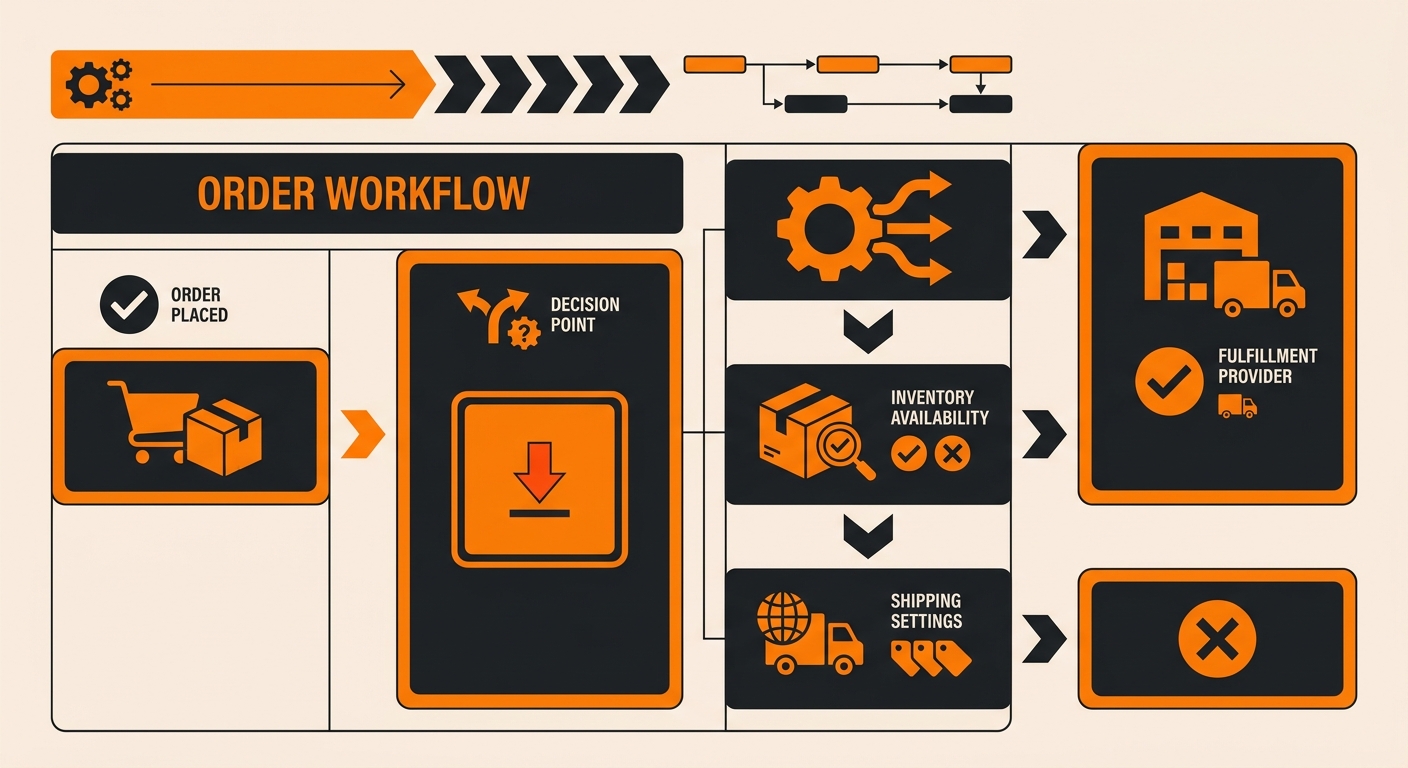
When a customer places an order on your connected storefront, that order is transmitted to Fulfyld’s system via the integration.
Shipedge receives the order, reads the shipping method name, looks it up against the shipping method mapping configured for your account, and routes the order to the appropriate Fulfyld fulfillment queue.
Two things have to be true for that to work: the integration has to be active and transmitting, and the shipping method on the order has to be recognized by Shipedge. If either of those conditions isn’t met or if the order contains a SKU flagged as Dropship/Ignore, the order doesn’t route.
Why Didn’t My Order Route to Fulfyld? Cause by Cause
Work through these in order. Start with the most common causes before escalating.
Cause 1: The Sales Channel Integration Is Disconnected or Broken
The most common cause of missing orders is an integration that’s no longer transmitting correctly. Integrations between storefronts and Fulfyld run via API, and they can break for several reasons: an API key was revoked or expired, a platform password was changed, a Shopify app was uninstalled or had its permissions modified, or the connection lapsed during a platform update .
How to diagnose it: Log in to your Fulfyld client portal and check whether other recent orders from the same channel are showing up in Shipedge. If orders stopped appearing around a specific date and time, that’s a strong sign the integration broke at that point. Check your storefront’s admin to verify the Fulfyld integration app is still installed, authorized, and showing as connected.
What to do: Contact your account manager with the name of the affected channel, the approximate date orders stopped routing, and any error messages you’ve seen on the storefront side. They can verify the integration status and reconnect it if needed.
Cause 2: The Shipping Method on the Order Isn’t Mapped in Shipedge
If a customer checks out with a shipping method that isn’t in Shipedge’s mapping table, the order arrives in Fulfyld’s system without a recognized shipping method and either fails to route entirely or lands in a queue requiring manual resolution.
How to diagnose it: Check the order in Shipedge. If it appears but shows no shipping method or shows an unrecognized method this is the cause. Compare the exact shipping method name on the order against the names listed in your Shipedge shipping method mapping.
What to do: Contact your account manager with the exact shipping method name as it appears on the order. They can add or correct the mapping in Shipedge. Going forward, any time you add or rename a shipping method on your storefront, notify your account manager before it goes live so the mapping can be updated in Shipedge first.
Cause 3: The Order Contains a SKU Listed in the Dropship/Ignore Tab
During onboarding, the SKU/Shipping Method Excel Template includes a Dropship/Ignore SKUs tab. Any SKU listed there is flagged in Shipedge as one that Fulfyld should not fulfill; it passes through without being picked and packed.
How to diagnose it: Check the order in Shipedge and look at the SKU-level status. If the order exists but individual line items show as passed through or ignored, cross-reference those SKUs against your Dropship/Ignore list.
What to do: Contact your account manager to verify whether the SKU is on the ignore list and, if it was added in error, to have it removed and reclassified as a fulfillable item.
Missing Orders Don’t Resolve Themselves
An order that didn’t route to Fulfyld won’t self-correct. If it isn’t in Shipedge, it isn’t being fulfilled and the customer’s delivery clock is running. Work through the causes above as soon as you notice an order is missing, and contact your account manager if you can’t identify the issue quickly.
Catching a routing problem early, before the customer starts asking where their order is, is always easier than resolving it after the fact.
Still Have Questions?
For help diagnosing a specific missing order, contact your dedicated account manager directly, or reach the Fulfyld team at hey@fulfyld.com or (256) 716-8241. Additional documentation on integrations, shipping method mapping, and order management is available at fulfyld.com/docs.